For the complete documentation index, see llms.txt. This page is also available as Markdown.

Dashboards

Save the charts you build, arrange them into a dashboard, and share it with your team.

A chart you have to rebuild every Monday isn't a report — it's a chore. Dashboards are where the charts you care about live so that you, and everyone else, can just open them.

A saved dashboard

Saving a chart

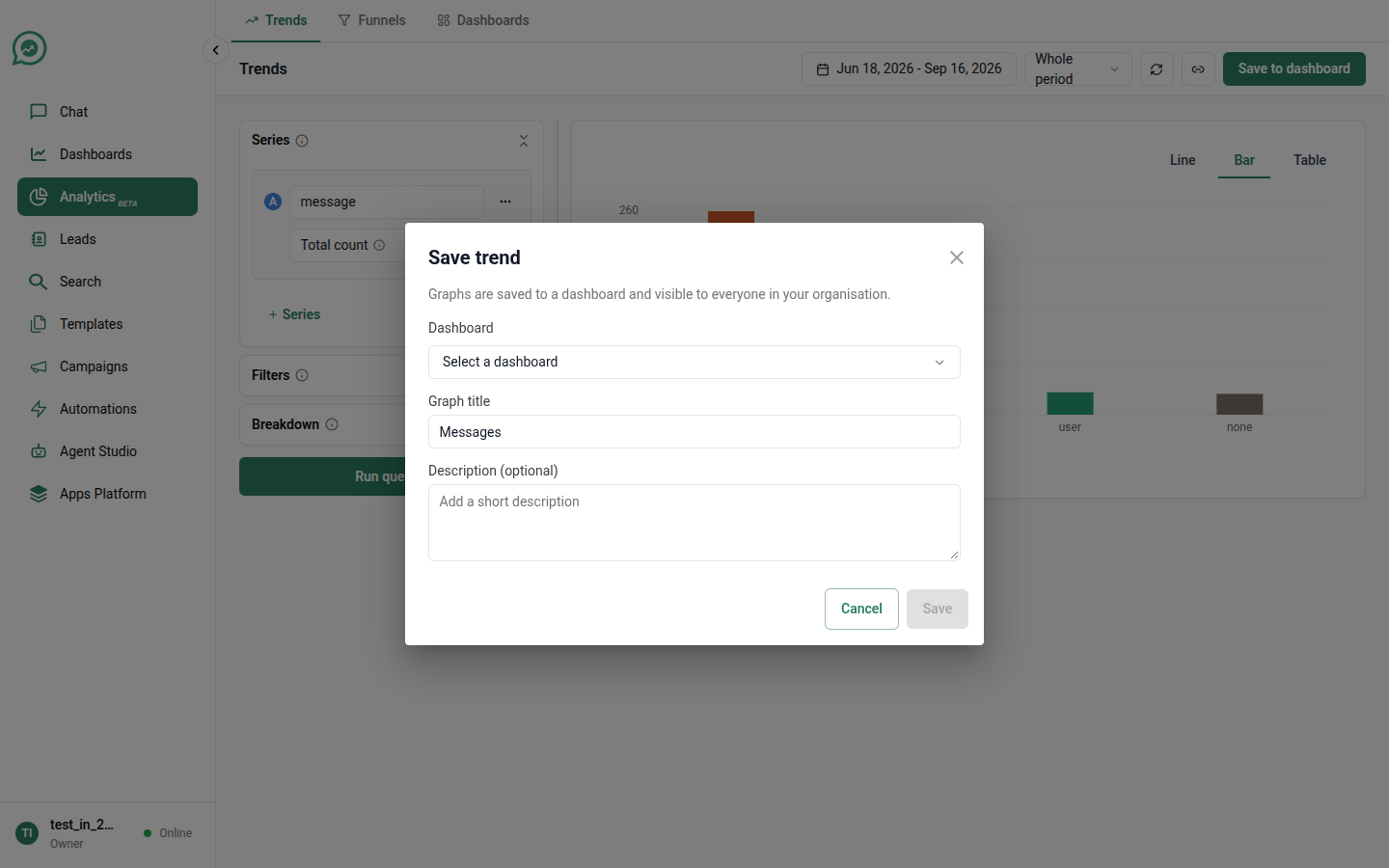
Any chart in Trends or Funnels can be saved, at any point.

  1. Build the chart you want.

  2. Click Save in the top-right corner.

  3. Pick a dashboard, or choose New dashboard and name it.

  4. Give the graph a title, and a short description of what it shows.

  5. Choose where it lands in the order, and hit Save.

Saving a chart to a dashboard

Write the title for the person who didn't build it.

"Replies within 3 days of a campaign send" survives being forwarded. "Funnel 2" doesn't. The description shows up under the title on the dashboard, so use it to record the caveat you'd otherwise have to explain in a meeting.

Finding your dashboards

Analytics → Dashboards lists everything saved in your organisation. You can search by name, sort the list, and filter by Created by to find your own or a colleague's.

New dashboard creates an empty one you can then add graphs to.

Working inside a dashboard

Control
What it does

Date range

Re-runs every graph over the dates you pick — without changing what was saved. Leave it on As saved and each graph replays exactly the window its author chose.

Group by

Switches every trend between daily, weekly and monthly buckets, again only for your view.

Refresh

Pulls fresh numbers for every card.

Copy link

Copies the dashboard's URL.

Add graph

Opens the builder to create a new chart that saves straight back here.

Reorder

Drag the cards, then Save order. The new order is what everyone sees.

Each card has a menu in its corner:

  • Edit query — opens the chart back in the builder. Saving from there updates this graph in place.

  • Rename — change the title or description.

  • Delete — removes it from this dashboard.

Sharing

A dashboard's URL is the share link. Copy it, paste it in chat or an email, and anyone on your team with access to Analytics sees the same dashboard.

The same works for a single chart: the Copy link button on Trends and Funnels copies a link that reopens the exact query you're looking at — every series, filter, breakdown and date. It's the fastest way to hand someone a question rather than a screenshot.

Links carry the query, not the data. Whoever opens it runs it fresh against your organisation's data — so the numbers are current, and normal access rules still apply.

Getting the numbers out

  • Trends → Export CSV above the chart, for the numbers behind every series.

  • Funnels → click a step or a drop-off, then Download CSV for the leads themselves.

  • Switching any trend to the Table view is often enough if you just want to read exact values — ranking templates and reading a ratio both use it.

For scheduled, organisation-wide extracts, see Metric Dumps.

Ready-made dashboards

Some parts of SalesChat come with a dashboard already built, attached to the thing it measures — so you don't have to construct the obvious reports yourself.

Automation Overview

Attached to a single automation, it answers "is this automation working, and are people responding?"

Card
What it tells you

Total triggers

Every time this automation's trigger matched and a run was created. A run later stopped by a send limit still counts.

Total leads responded

Leads who sent a message within 3 days of this automation reaching them.

Automation journey

The four stages of a run — triggered, passed the governance limits, action executed, message sent — and where runs fall out. Counts runs, not leads.

Messages processed over time

Daily send volume.

Response distribution

Whether leads replied by tapping a button or by typing.

Leads distribution

New leads (created within 24 hours of the run) against returning ones.

Failures by reason

Why runs didn't complete. Governance failures never reached the send queue; skipped runs were leads already in an AI conversation.

Inbound Overview

Attached to a single inbound rule, it answers "how is inbound flowing from first message to a human?"

Card
What it tells you

Total sessions

Inbound conversations started in the date range, for this rule.

Active now

Conversations open right now. Not affected by the date range.

Queued rate

The share of conversations that had to wait for an agent. Reads high when AI handling is off — every conversation routed to a human passes through the queue.

Inbound session duration

How long conversations last, as a distribution. Every ended session counts, resolved or timed out.

Reopen rate

Auto-resolved conversations where the lead came back within 48 hours — your "was it really resolved?" number.

Avg. AI handling

Average length of an AI-handled stretch. AI time only; queue and human handling aren't included.

These dashboards grow. Cards appear as the underlying measurements go live, rather than sitting there empty. If a number you'd expect isn't on the Inbound dashboard yet, it's on the way — a blank card that looks like a measured zero is worse than no card at all.

Making one your own

A ready-made card is a starting point, not a ceiling. Open a card's menu and choose Open in Analytics: the query opens in the builder as a fresh, unsaved chart, filters and all. From there it behaves like anything in Example Reports. Change what you like, then save it to a dashboard of your own — the original is untouched.


A dashboard worth keeping

The dashboards people actually open have three things in common:

  1. One audience per dashboard. What a campaign manager needs and what an operations lead needs are two dashboards, not one crowded page.

  2. The headline number first. Put the two or three numbers that would start a conversation at the top, and the diagnostic charts underneath.

  3. A caveat in every description. "Counts runs, not leads." "Replies matched by time, not attribution." The caveat you write once is the argument you don't have every month.

Last updated