> For the complete documentation index, see [llms.txt](https://docs.saleschat.pro/llms.txt). Markdown versions of documentation pages are available by appending `.md` to page URLs; this page is available as [Markdown](https://docs.saleschat.pro/application/analytics/dashboards.md).

# Dashboards

Save the charts you build, arrange them into a dashboard, and share it with your team.

A chart you have to rebuild every Monday isn't a report — it's a chore. Dashboards are where the charts you care about live so that you, and everyone else, can just open them.

<figure><img src="https://3972437347-files.gitbook.io/~/files/v0/b/gitbook-x-prod.appspot.com/o/spaces%2FN79Qkvilzy4rLCQtSeUa%2Fuploads%2Fgit-blob-82c6823c4ffb314eb41ad02a96543d0947d5529f%2Fanalytics-dashboard.png?alt=media" alt=""><figcaption><p>A saved dashboard</p></figcaption></figure>

## Saving a chart

Any chart in [Trends](/application/analytics/example-reports.md#trends-recipes) or [Funnels](/application/analytics/example-reports.md#funnel-recipes) can be saved, at any point.

1. Build the chart you want.
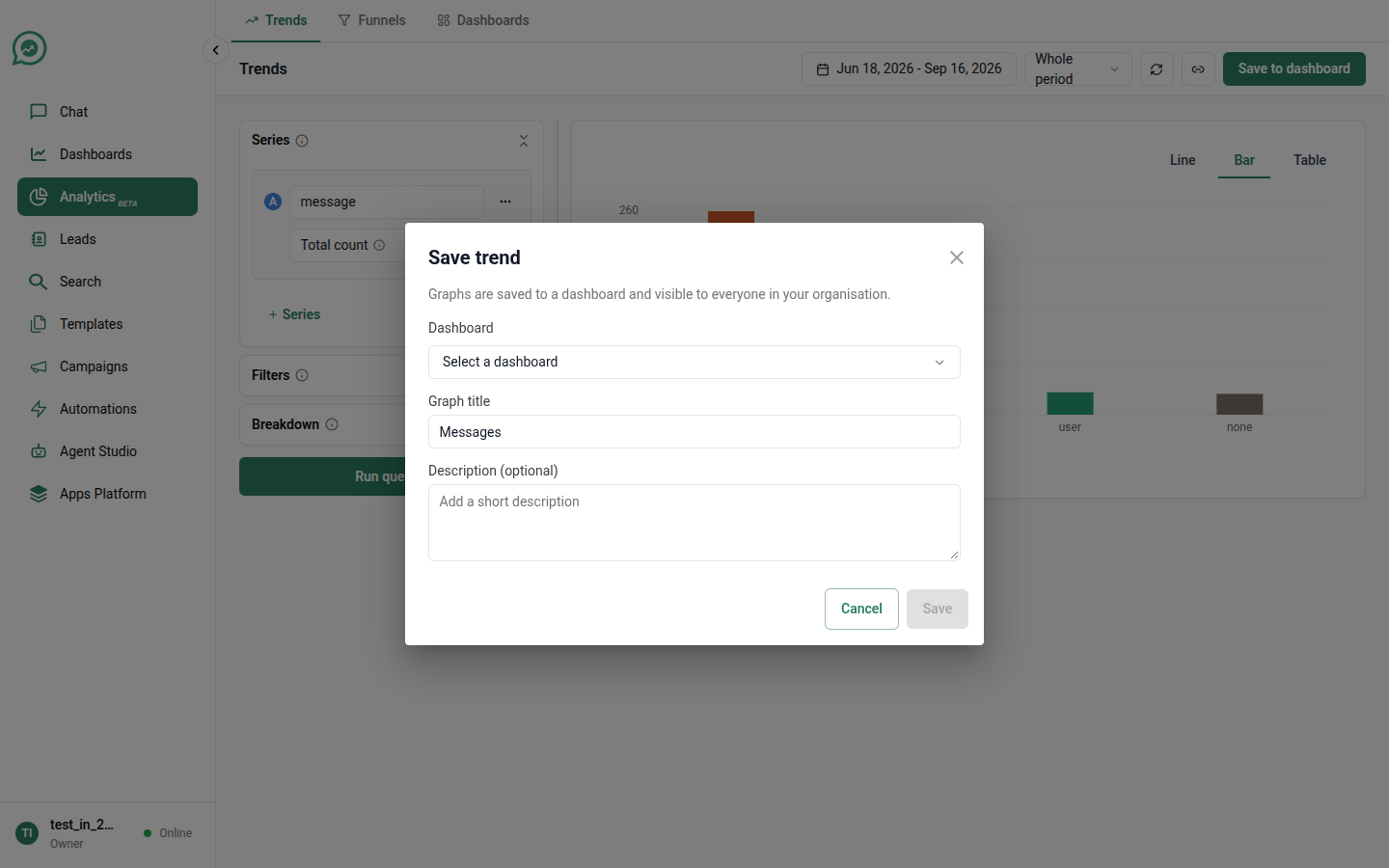
2. Click **Save** in the top-right corner.
3. Pick a dashboard, or choose **New dashboard** and name it.
4. Give the graph a **title**, and a short **description** of what it shows.
5. Choose where it lands in the order, and hit **Save**.

<figure><img src="https://3972437347-files.gitbook.io/~/files/v0/b/gitbook-x-prod.appspot.com/o/spaces%2FN79Qkvilzy4rLCQtSeUa%2Fuploads%2Fgit-blob-1fc1646cde6f9f8090b49e16cddda82aa61250ad%2Fanalytics-save-to-dashboard.png?alt=media" alt=""><figcaption><p>Saving a chart to a dashboard</p></figcaption></figure>

{% hint style="info" %}
**Write the title for the person who didn't build it.**

*"Replies within 3 days of a campaign send"* survives being forwarded. *"Funnel 2"* doesn't. The description shows up under the title on the dashboard, so use it to record the caveat you'd otherwise have to explain in a meeting.
{% endhint %}

## Finding your dashboards

**Analytics → Dashboards** lists everything saved in your organisation. You can search by name, sort the list, and filter by **Created by** to find your own or a colleague's.

**New dashboard** creates an empty one you can then add graphs to.

## Working inside a dashboard

<table><thead><tr><th width="215">Control</th><th>What it does</th></tr></thead><tbody><tr><td><strong>Date range</strong></td><td>Re-runs every graph over the dates you pick — without changing what was saved. Leave it on <strong>As saved</strong> and each graph replays exactly the window its author chose.</td></tr><tr><td><strong>Group by</strong></td><td>Switches every trend between daily, weekly and monthly buckets, again only for your view.</td></tr><tr><td><strong>Refresh</strong></td><td>Pulls fresh numbers for every card.</td></tr><tr><td><strong>Copy link</strong></td><td>Copies the dashboard's URL.</td></tr><tr><td><strong>Add graph</strong></td><td>Opens the builder to create a new chart that saves straight back here.</td></tr><tr><td><strong>Reorder</strong></td><td>Drag the cards, then <strong>Save order</strong>. The new order is what everyone sees.</td></tr></tbody></table>

{% hint style="warning" %}
The date range you pick while viewing is **yours and temporary**. It is never saved, and it isn't carried in the link you copy — someone opening your link sees the dashboard as saved, not as you were looking at it.
{% endhint %}

Each card has a menu in its corner:

* **Edit query** — opens the chart back in the builder. Saving from there updates this graph in place.
* **Rename** — change the title or description.
* **Delete** — removes it from this dashboard.

## Sharing

A dashboard's URL **is** the share link. Copy it, paste it in chat or an email, and anyone on your team with access to Analytics sees the same dashboard.

The same works for a single chart: the **Copy link** button on Trends and Funnels copies a link that reopens the exact query you're looking at — every series, filter, breakdown and date. It's the fastest way to hand someone a question rather than a screenshot.

{% hint style="info" %}
Links carry the query, not the data. Whoever opens it runs it fresh against your organisation's data — so the numbers are current, and normal access rules still apply.
{% endhint %}

## Getting the numbers out

* **Trends** → **Export CSV** above the chart, for the numbers behind every series.
* **Funnels** → click a step or a drop-off, then **Download CSV** for the leads themselves.
* Switching any trend to the **Table** view is often enough if you just want to read exact values — [ranking templates](/application/analytics/example-reports.md#recipe-5-which-template-earns-its-place) and [reading a ratio](/application/analytics/example-reports.md#recipe-19-a-ratio-you-work-out-yourself) both use it.

For scheduled, organisation-wide extracts, see [Metric Dumps](/application/metric-dumps.md).

## Ready-made dashboards

Some parts of SalesChat come with a dashboard already built, attached to the thing it measures — so you don't have to construct the obvious reports yourself.

### Automation Overview

Attached to a single automation, it answers *"is this automation working, and are people responding?"*

<table><thead><tr><th width="250">Card</th><th>What it tells you</th></tr></thead><tbody><tr><td><strong>Total triggers</strong></td><td>Every time this automation's trigger matched and a run was created. A run later stopped by a send limit still counts.</td></tr><tr><td><strong>Total leads responded</strong></td><td>Leads who sent a message within 3 days of this automation reaching them.</td></tr><tr><td><strong>Automation journey</strong></td><td>The four stages of a run — triggered, passed the governance limits, action executed, message sent — and where runs fall out. Counts runs, not leads.</td></tr><tr><td><strong>Messages processed over time</strong></td><td>Daily send volume.</td></tr><tr><td><strong>Response distribution</strong></td><td>Whether leads replied by tapping a button or by typing.</td></tr><tr><td><strong>Leads distribution</strong></td><td>New leads (created within 24 hours of the run) against returning ones.</td></tr><tr><td><strong>Failures by reason</strong></td><td>Why runs didn't complete. Governance failures never reached the send queue; skipped runs were leads already in an AI conversation.</td></tr></tbody></table>

### Inbound Overview

Attached to a single inbound rule, it answers *"how is inbound flowing from first message to a human?"*

<table><thead><tr><th width="250">Card</th><th>What it tells you</th></tr></thead><tbody><tr><td><strong>Total sessions</strong></td><td>Inbound conversations started in the date range, for this rule.</td></tr><tr><td><strong>Active now</strong></td><td>Conversations open right now. Not affected by the date range.</td></tr><tr><td><strong>Queued rate</strong></td><td>The share of conversations that had to wait for an agent. Reads high when AI handling is off — every conversation routed to a human passes through the queue.</td></tr><tr><td><strong>Inbound session duration</strong></td><td>How long conversations last, as a distribution. Every ended session counts, resolved or timed out.</td></tr><tr><td><strong>Reopen rate</strong></td><td>Auto-resolved conversations where the lead came back within 48 hours — your "was it really resolved?" number.</td></tr><tr><td><strong>Avg. AI handling</strong></td><td>Average length of an AI-handled stretch. AI time only; queue and human handling aren't included.</td></tr></tbody></table>

{% hint style="info" %}
**These dashboards grow.** Cards appear as the underlying measurements go live, rather than sitting there empty. If a number you'd expect isn't on the Inbound dashboard yet, it's on the way — a blank card that looks like a measured zero is worse than no card at all.
{% endhint %}

### Making one your own

A ready-made card is a starting point, not a ceiling. Open a card's menu and choose **Open in Analytics**: the query opens in the builder as a fresh, unsaved chart, filters and all. From there it behaves like anything in [Example Reports](/application/analytics/example-reports.md). Change what you like, then save it to a dashboard of your own — the original is untouched.

***

## A dashboard worth keeping

The dashboards people actually open have three things in common:

1. **One audience per dashboard.** What a campaign manager needs and what an operations lead needs are two dashboards, not one crowded page.
2. **The headline number first.** Put the two or three numbers that would start a conversation at the top, and the diagnostic charts underneath.
3. **A caveat in every description.** *"Counts runs, not leads."* *"Replies matched by time, not attribution."* The caveat you write once is the argument you don't have every month.