Example Reports
The questions marketing, sales and product teams actually ask — and exactly how to build each one, from a first chart to multi-event funnels.
Every recipe below follows the same shape: the question, how to build it, and how to read it — because the second half is where reports go wrong.
If a name in these steps doesn't mean anything to you, look it up in the Events Reference.
Jump to a recipe
Trends recipes
Funnel recipes
Advanced recipes — Trends
Advanced recipes — Funnels

Trends recipes
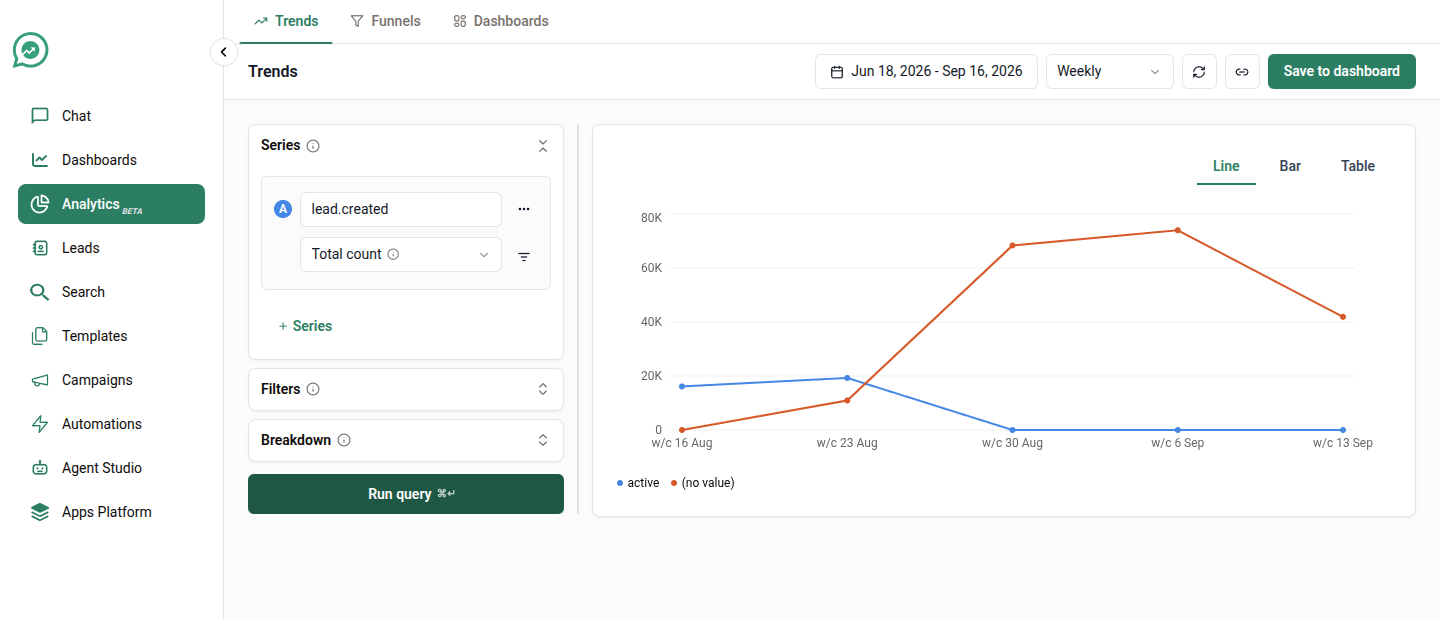
Recipe 1: How many new leads are we getting, and where from?
Build it
Series → event
lead.created, measurement Total count.Breakdown → pick the attribute that holds your source — one of your own, like
lead.sourceorlead.channel, orlead.sc_campaignif you set campaign labels.Date range → Last 90 days, grouped by Week.

Read it
One line per source. A source that only appears halfway through the chart is new, not broken — a gap means nothing happened, not zero.
If you have more than 25 sources, the smallest are rolled into a single Other line. That ranking is over the whole 90 days, so a source that spiked once in week 2 can still end up in Other.
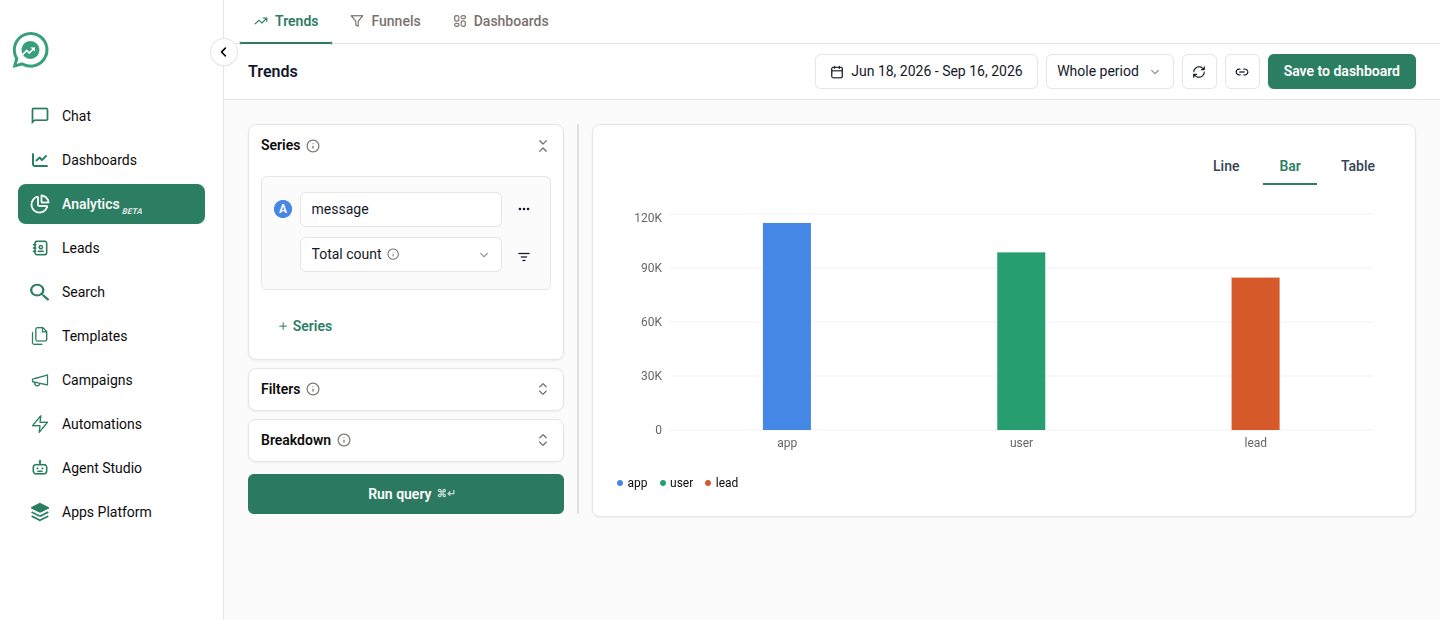
Recipe 2: Who is actually doing the talking?
The single most clarifying chart in the product, and it takes thirty seconds.
Build it
Series → event
message, measurement Total count.Breakdown →
participant.sc_type.Switch the chart to Bar, and set Group by to Whole period.

Read it
Three bars: lead (your customers), user (your human agents), app (campaigns, automations and bots).
If app dwarfs the other two, you are broadcasting rather than conversing. If lead is a sliver, your outbound isn't landing. This ratio is the fastest health check you have.
Recipe 3: Are leads tapping our buttons, or typing at us?
Build it
Series → event
message, measurement Total count.On that series' row, use the filter icon →
participant.sc_typeislead.Breakdown →
message.sc_reply_kind.

Read it
interactive means the lead tapped a button or list option you offered. free_flow means they typed their own message.
A high free_flow share on a template-heavy flow usually means your buttons aren't offering what people actually want to say — and every free-flow reply is one an agent has to read.
Replies we can't classify are left out of both bars, so the two won't always add up to your total lead messages.
Recipe 4: Is WhatsApp actually delivering our messages?
Build it
Series 1 →
message.receipt.sent, Total count. Label it Sent.Add a series →
message.receipt.delivered. Label it Delivered.Add a third →
message.receipt.read. Label it Read.Group by Day, chart view Line.
Read it
Three lines that should sit in a stable ratio. A delivered line that suddenly diverges from sent points at a number-quality or WhatsApp-side problem, not at your content. A read line that collapses while delivered holds steady is a content problem.
Recipe 5: Which template earns its place?
Build it
Series 1 →
message.receipt.sent, Total count, labelled Sent.Series 2 →
message.receipt.read, Total count, labelled Read.Breakdown →
template.sc_name.Group by → Whole period, chart view Table.
Read it
The table gives you sent and read side by side per template — read rate is one division away. Use Table rather than a chart here; ranking twenty templates is a reading task, not a picture.
To compare categories instead of individual templates, break down by template.sc_waba_template_category and you'll see how your marketing templates fare against your utility ones.
Recipe 6: How many of our messages never went out?
Build it
Series → event
message, measurement Total count.Filters →
message.sc_successisfalse.Breakdown →
journey.sc_name.
Read it
These are messages blocked before WhatsApp ever saw them — outside working hours, stopped by moderation, containing a filtered word, or sent to a conversation whose window had closed.
Breaking down by journey name tells you which campaign or automation is generating the waste. A single automation dominating this chart usually means its schedule and your working hours disagree.
Recipe 7: Is this automation reliable?
Build it
Series → event
journey.execution, measurement Total count.Filters →
journey.sc_nameis your automation's name.Breakdown →
journey.sc_execution_status.
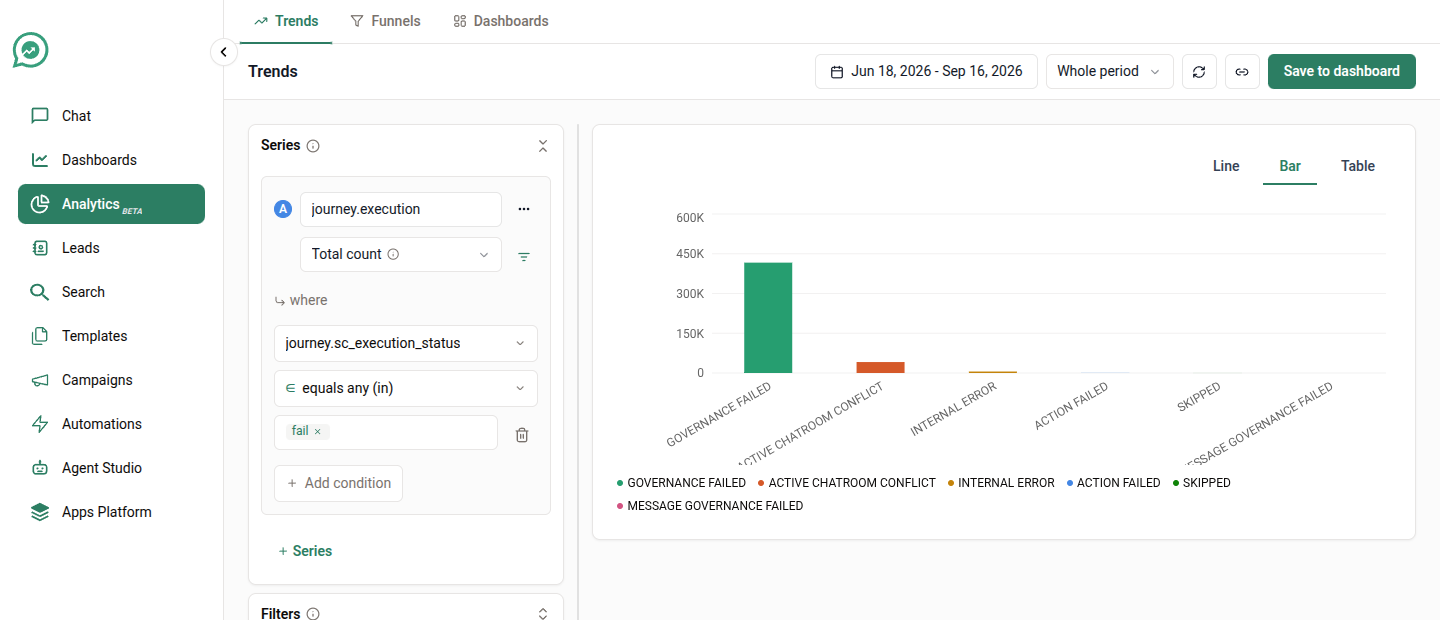
Then, to see why things fail, change the breakdown to journey.sc_execution_failure_type and add a filter journey.sc_execution_status is fail.


Read it
journey.execution counts attempts, not leads. An automation that fires three times for one lead contributes three.
Failures are not all equal: send-limit and governance rejections mean the automation deliberately held back, which is the system working. Genuine errors are the ones worth chasing.
Recipe 8: How many leads did this campaign actually reach?
Build it
Series → event
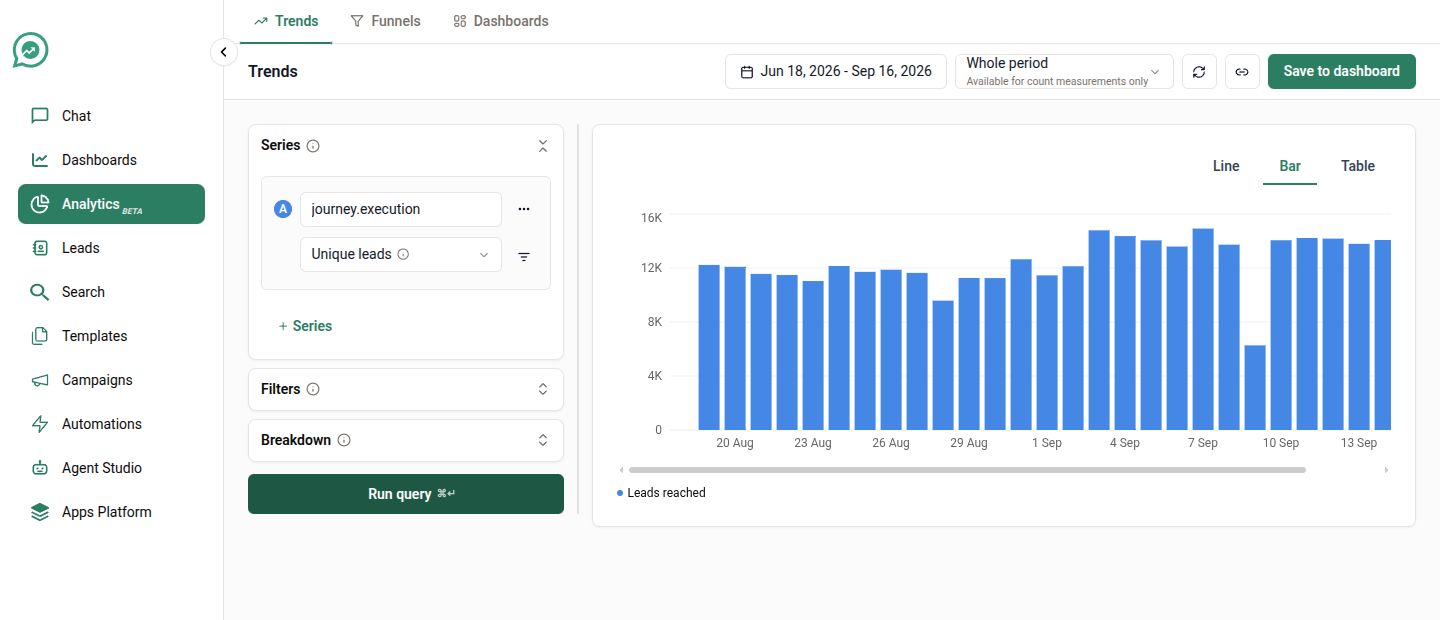
journey.execution, measurement Unique leads.Filters →
journey.sc_nameis your campaign's name.Group by Whole period.

Read it
Unique leads is doing the work here. Where Total count would give you attempts — including retries and repeat sends — Unique leads counts each person once, which is the number you'd quote to a stakeholder.
Run the same query both ways and the gap between them is your retry and repeat volume.
Recipe 9: How long are our conversations?
Build it
Series → event
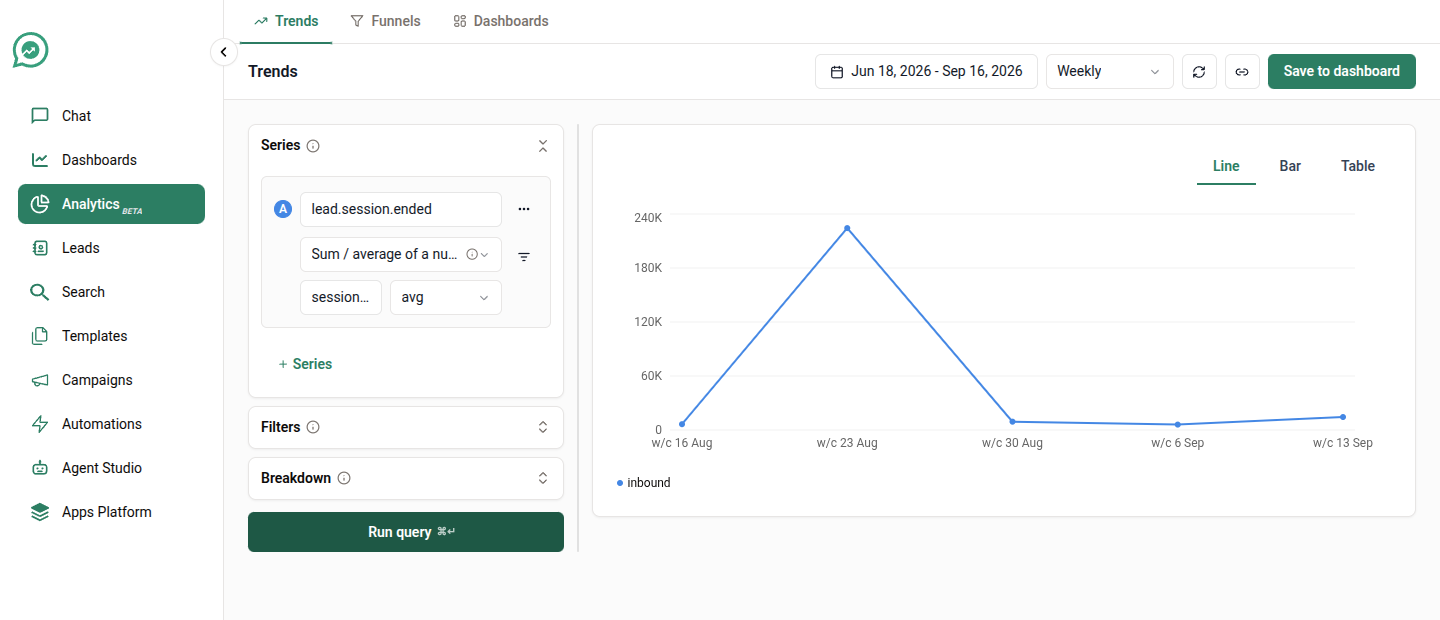
lead.session.ended.Measurement → Sum / average of a number, operation avg, attribute
session.sc_duration_secs.Group by Week.

Read it
The number is in seconds. Averages hide their tails — a handful of conversations someone forgot to close will drag the whole line up — so switch the operation to median for the typical case, and to p90 for "how bad does it get".
Conversations without a recorded duration are skipped entirely rather than counted as zero.
Recipe 10: How much of our inbound has to wait for a human?
Build it
Series 1 →
lead.session.started, Total count, labelled Started.Series 2 →
lead.session.queued, Total count, labelled Queued for an agent.Group by Day.
Read it
The gap between the two lines is everything your automations handled without a person. The queued line rising while started stays flat means your deflection is slipping.
Recipe 11: New leads vs returning conversations
Build it
Series → event
message, measurement Unique leads.On the series row, filter →
participant.sc_typeislead.Breakdown →
lead.sc_is_new.

Read it
true means the lead was created within 24 hours of that message — a genuinely new conversation. false is someone coming back.
This is the chart that tells you whether growth is acquisition or re-engagement.
Recipe 12: When did each customer first do the thing that matters?
This one needs an event of your own — demo_booked, payment_received, policy_issued. See Getting your own data in.
Build it
Series → your event, e.g.
payment_received.Measurement → First-ever occurrence.
Group by Month.
Read it
Each lead is counted once, on the date of their very first such event ever — so this is genuinely new customers per month, not repeat business.
First-ever occurrence searches across all time, then only shows leads whose first-ever event falls inside your date range. A customer whose first payment was before your window won't appear at all, even if they paid again inside it. That's the point of the measurement, but it surprises people.
If you want "first time they did this matching my filters", use First occurrence matching filters instead.
Funnel recipes
Funnels answer a different shape of question: not how much, but how many made it through.
Open Analytics → Funnels. A funnel takes 2 to 5 steps, in the order a lead should do them.

Recipe 13: Did anyone reply to our campaign?
Build it
Step 1 →
message, filteredparticipant.sc_typeisappandjourney.sc_nameis your campaign.Step 2 →
message, filteredparticipant.sc_typeislead.Settings → Conversion window
3 days.

Read it
Step 2 is your reply rate, and the drop-off between the two bars is everyone who ignored you.
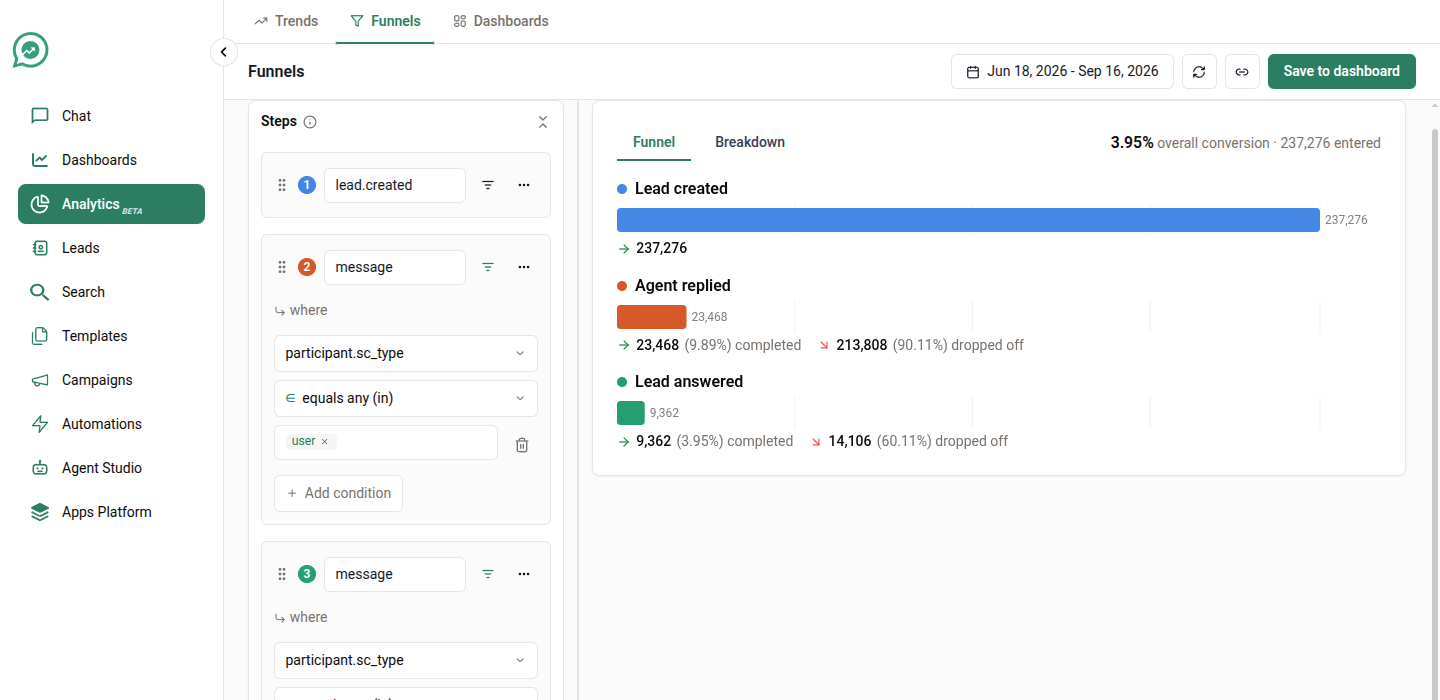
Recipe 14: From new lead to a real conversation
Build it
Step 1 →
lead.created.Step 2 →
message, filteredparticipant.sc_typeisuser— a human agent said something.Step 3 →
message, filteredparticipant.sc_typeislead— the lead answered.Step 4 →
lead.attribute.set— the lead was given a stage or disposition.Settings → Conversion window
14 days, Step orderSequential.

Read it
This is your onboarding funnel, end to end. The biggest drop usually sits between steps 1 and 2 — leads nobody ever got to.
Sequential is the setting you want almost always: step 3 must happen after step 2, but the lead is allowed to do other things in between.
Recipe 15: Which campaign converts best?
Take any funnel above and add a breakdown.
Build it
Build the funnel from recipe 13.
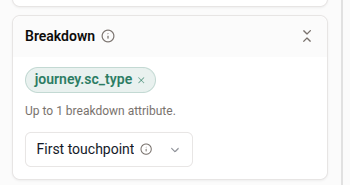
Breakdown →
journey.sc_name.
Read it
One funnel per campaign, each with its own conversion rate, side by side.
Because a lead can pick up different campaign values at different steps, Attribution (in Settings) decides which one they're counted under. First touchpoint is the usual choice: the lead counts under whichever campaign reached them first.
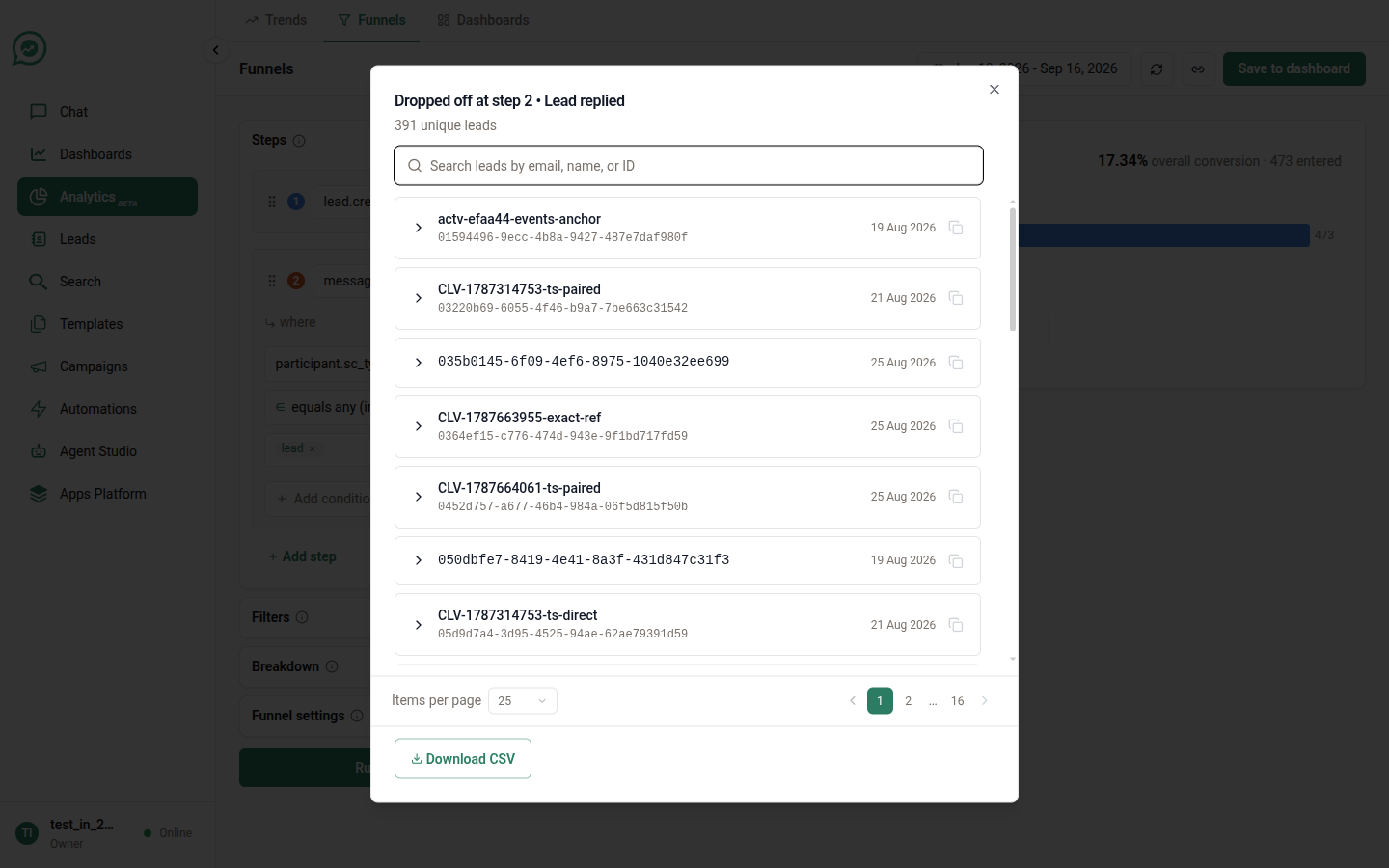
Recipe 16: Who exactly dropped off, and can I have the list?
This is the feature that turns a funnel from a report into a work queue.
Build it
Build any funnel.
Click a step's bar, or the drop-off between two bars.
Read it
A panel opens with the actual leads — searchable, paged, showing the attributes carried on their events. Download CSV gives you the whole population, not just the page you're looking at.

So "everyone who was reached by the Diwali campaign and never replied" is two clicks and a CSV away.
Advanced recipes — Trends
Everything above uses one event and one breakdown. The four controls below are where Analytics stops being a chart tool and starts answering questions you'd otherwise export to a spreadsheet.
Recipe 17: Count several different events as one thing
"Engagement" is rarely a single event. A lead who replies, books a demo, or updates their details has engaged three different ways — and you want one line, not three.
Build it
Series → pick your first event, e.g.
message.Open the series' ⋯ menu → Count multiple events as a single series.
The card becomes "Any of the events below". Use + Add event to add the others, e.g.
lead.attribute.setand your owndemo_booked.Measurement → Unique leads.

Read it
The events are OR'd: a lead is counted if they did any of them. With Unique leads, a lead who did all three still counts once — which is exactly what "how many people engaged at all" means.
Up to 10 events can be combined into one series.
This works fully in Trends, but only partly in Funnels.
A combined funnel step does match "any of these events", but the per-event filters on it are not applied yet. The builder shows a note saying so on the card. If your combined step needs a filter to be correct, split it into separate funnels until that lands.
Recipe 18: Split by two things at once
One breakdown tells you which campaign. Two tell you which campaign, on which channel — and that's usually where the real answer is hiding.
Build it
Series →
message, Total count.Breakdown →
participant.sc_type, then Add breakdown →room.sc_channel.Chart view → Table.

Read it
You get one row per combination — lead · whatsapp, app · whatsapp, lead · website, and so on. That's what finds the case where automations perform fine on WhatsApp and badly everywhere else.
Trends allows up to three breakdown attributes. Be careful: three attributes with ten values each is a thousand possible lines. The 25-line cap plus Other stops the chart exploding, but it also means a small-but-interesting combination can vanish into Other. Two attributes is usually the honest limit for a chart; use Table if you need three.
Recipe 19: A ratio you work out yourself
"Messages per lead" isn't an event — it's one number divided by another. Analytics has no formula field, so you build both halves and divide.
Build it
Series 1 →
message, measurement Total count, labelled Messages.Series 2 →
message, measurement Unique leads, labelled Leads talking.Same event, different measurement — that's the trick.
Chart view → Table, Group by → Week.

Read it
Each row gives you both numbers for that week; messages ÷ leads is your conversation depth. A rising ratio means fewer people having longer conversations — which is a very different business from more people having short ones, and a single line would hide the difference.
Export with Export CSV if you want the division done in a spreadsheet.
Recipe 20: How bad does it get, not how bad is it on average
Averages are the wrong tool for anything you'd write an SLA against. One conversation somebody forgot to close drags the mean up; the median hides the tail entirely.
Build it
Series →
lead.session.ended.Measurement → Sum / average of a number, attribute
session.sc_duration_secs.Operation → p90.
Breakdown →
session.sc_type.Group by → Week.

Read it
p90 is "9 in 10 conversations finished faster than this". It's the number to quote in a commitment, and the one that moves when things are quietly getting worse.
Run it three times — avg, median, p90 — and the shape of the gap tells you whether you have a consistent process or a good average hiding a bad tail.
Recipe 21: Which campaign first reached each lead, month by month
Every other campaign chart double-counts: a lead touched by three campaigns appears three times. This one counts each lead exactly once, under whichever campaign got there first.
Build it
Series →
message.On the series row, filter →
participant.sc_typeisappandjourney.sc_typeiscampaign.Measurement → First occurrence matching filters.
Breakdown →
journey.sc_name.Group by → Month.
Read it
Each lead contributes a single 1, in the month of their earliest campaign message, under that campaign's name. Sum the whole chart and you get your reachable audience — no double counting, whatever the overlap between campaigns.
Read the two first-occurrence measurements carefully — they answer different questions.
First-ever occurrence looks at the lead's very first
messageof any kind. If that message wasn't a campaign one, the lead is excluded entirely — even though they were later reached by a campaign.First occurrence matching filters looks at the earliest message that matches your filters, which is what this recipe wants.
Both search all of time and then keep only leads whose qualifying event falls inside your dates. So a lead first reached in March won't appear in an April–June window at all — a later campaign touch will not stand in for it. That is deliberate: it's what makes the number a true cohort rather than a running total.
Advanced recipes — Funnels
Recipe 22: Remove the leads who disqualified themselves
A funnel that counts people who unsubscribed halfway through is measuring the wrong population.
Build it
Build the funnel from recipe 14.
Funnel settings → Exclusion steps → Add exclusion.
Pick the disqualifying event — your own
unsubscribed, orlead.status.updatedwithlead.sc_new_statusisinactive.Set Between step 1 and 3.

Read it
Any lead who did that event between those two steps is removed from the whole funnel — including step 1, not just the later steps. So your step-1 count drops, and every percentage is recalculated against the population that was genuinely still in play.
The two steps you name must be different, and in funnel order — step 3 to step 1 is rejected.
That's the point, and it's also the trap: if you compare a funnel with exclusions against one without, the denominators are different. Don't read the two conversion rates as comparable.
Recipe 23: Does the order actually matter?
The same three steps answer three different questions depending on one setting.
Build it
Build any 3-step funnel, then run it three times, changing Funnel settings → Step order:
Sequential
B must happen after A, but anything may happen in between
The default, and what "funnel" normally means
Strict order
B must come directly after A, with no other funnel step between
You're testing a prescribed path and a detour counts as failure
Any order
All steps inside the window, in any sequence
You care whether people did all three things, not the order

Read it
The gap between Sequential and Strict order is your "people who wandered" number — leads who did everything but revisited an earlier step on the way. If that gap is large, your process has a loop in it that your funnel diagram doesn't show.
Any order has no drop-off between two specific steps, so don't read its bars as a sequence.
Recipe 24: Which step is actually the problem?
Build it
Take any funnel.
Funnel settings → Conversion rate calculation → Relative to previous step.

Read it
Overall shows each step as a share of everyone who entered — good for reporting the headline. Relative to previous step shows each step as a share of the step before it — good for finding the leak.
A funnel that reads 100 → 80 → 40 → 38 looks like a steady decline in Overall. In Relative it reads 80%, 50%, 95% — and the problem is unmistakably step 3.
Recipe 25: Who gets the credit?
When you break a funnel down by campaign, a lead who touched two campaigns has to be counted under one of them. Attribution (in the Breakdown section) decides which, and the four options give genuinely different numbers.
First touchpoint
The earliest value seen on its step events
"What brought them in?" — acquisition credit
Last touchpoint
The latest value seen
"What closed them?" — conversion credit
All steps
Every value it saw — so one lead appears in more than one funnel
Reach per campaign. Note the funnels will sum to more than your lead count.
Specific step
The value on the step you name
A specific question. A lead with no event at that step is dropped from the breakdown entirely.

Read it
Run the same funnel under First and Last touchpoint and compare. Where the two disagree sharply, you have campaigns that are good at starting conversations and different ones that are good at finishing them — and paying both on the same metric is how budget gets misallocated.
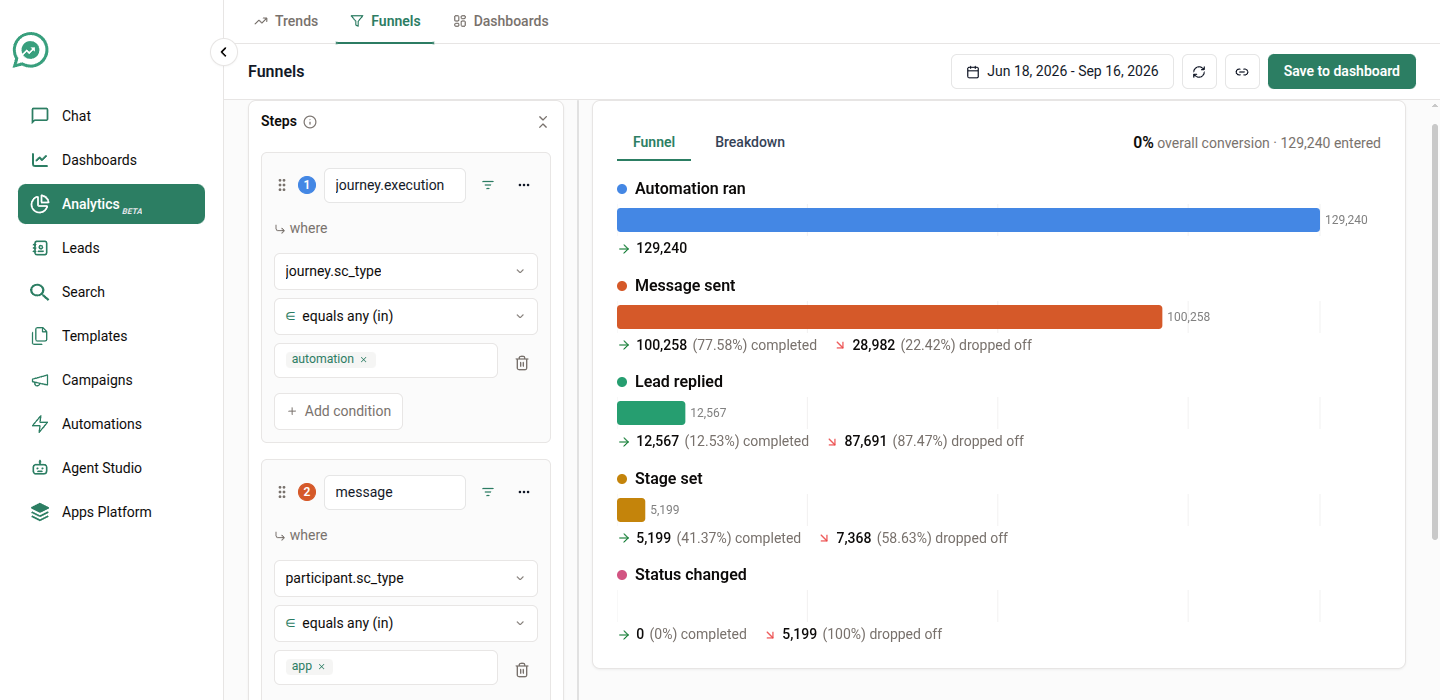
Recipe 26: The full campaign-to-pipeline funnel
Everything above changes one setting at a time. This builds the whole thing: five steps, filters on individual steps, a breakdown, and a tight window — the shape of a funnel you'd actually put in front of a stakeholder.
Build it
Step 1 →
journey.execution, filteredjourney.sc_typeiscampaign— the campaign tried to reach the lead.Step 2 →
message.receipt.delivered— it arrived on their phone.Step 3 →
message.receipt.read— they opened it.Step 4 →
message, filteredparticipant.sc_typeislead— they answered.Step 5 →
lead.attribute.set— someone moved them in the pipeline.Funnel settings → Conversion window
7 days, Step orderSequential, Conversion rate calculationRelative to previous step.Breakdown →
journey.sc_name, Attribution → First touchpoint.

Read it
Five steps is the maximum, and each one fails for a different reason — which is the point. Delivery failures are a data problem, read failures are a timing and subject-line problem, reply failures are a content problem, and step 5 failing while step 4 succeeds is a staffing problem: leads answered and nobody picked them up.
With Relative to previous step, you read straight down the column for the worst percentage and that's where to spend the week.
Limits worth knowing
Events combined into one series
10
Breakdown attributes — Trends
3
Breakdown attributes — Funnels
1
Breakdown lines before "Other"
25
Funnel steps
2 to 5
Funnel conversion window
90 days
Two habits worth building
Name your series. A chart legend that reads Sent · Delivered · Read is a chart you can send to someone else. One that reads message.receipt.sent (total_count) is a chart you'll have to explain.
Sanity-check the total first. Before trusting a breakdown, run the same query with no breakdown and check the total looks like the business you know. Nine times out of ten a surprising chart is a filter doing something you didn't intend.
Happy with a chart? Save it to a dashboard.
Last updated