> For the complete documentation index, see [llms.txt](https://docs.saleschat.pro/llms.txt). Markdown versions of documentation pages are available by appending `.md` to page URLs; this page is available as [Markdown](https://docs.saleschat.pro/application/analytics.md).

# Analytics

Ask your own questions of your SalesChat data — leads, messages, campaigns, automations and conversations — and get the answer as a chart.

Analytics is where you build your own reports. Instead of waiting for a monthly export, you pick what you want to count, how you want it split, and over what dates — and you get a chart back in a few seconds.

It answers questions like:

* How many new leads did the Diwali campaign bring in, week by week?
* Which WhatsApp template actually gets read?
* Of everyone this automation reached, how many replied — and how long did they take?
* Is the Sales team responding to more conversations than the Support team?

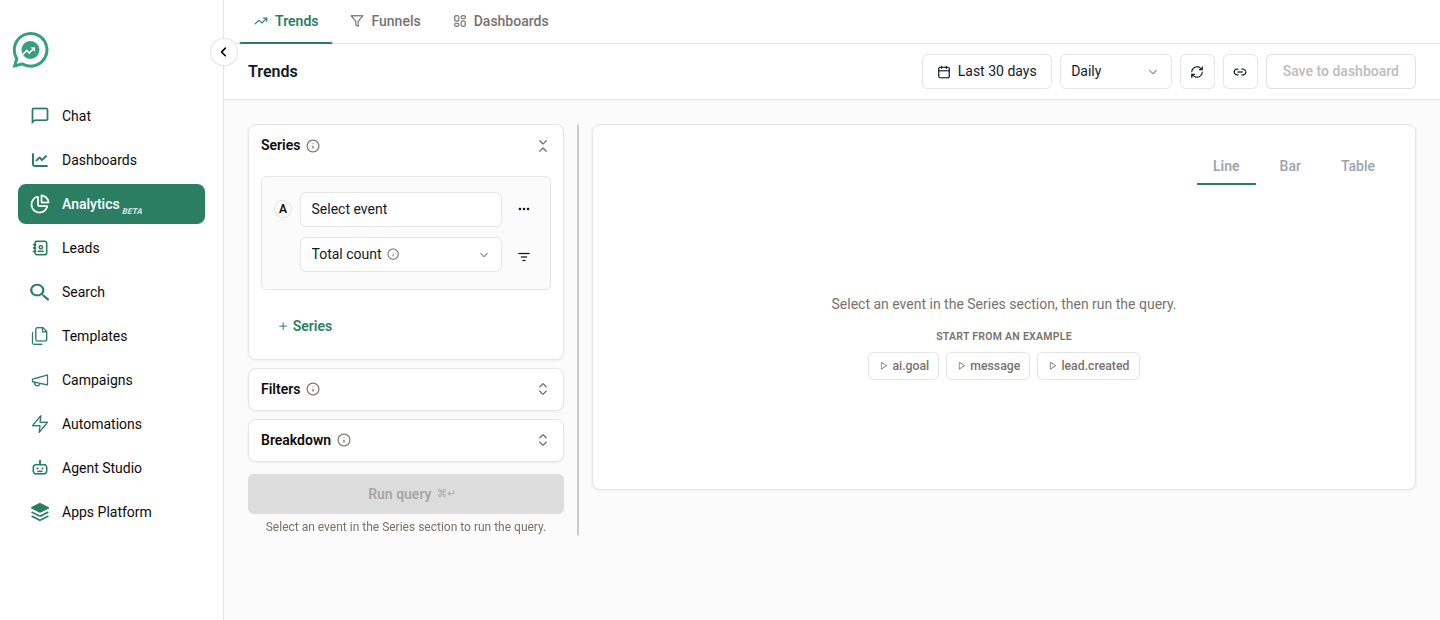
<figure><img src="https://3972437347-files.gitbook.io/~/files/v0/b/gitbook-x-prod.appspot.com/o/spaces%2FN79Qkvilzy4rLCQtSeUa%2Fuploads%2Fgit-blob-df0bfa45b84d5c5e29237f53113f33572b158bd9%2Fanalytics-overview.png?alt=media" alt=""><figcaption><p>The Analytics section</p></figcaption></figure>

## The three tools

<table><thead><tr><th width="150">Tool</th><th width="270">Answers</th><th>Use it when</th></tr></thead><tbody><tr><td><a href="/application/analytics/example-reports.md#trends-recipes"><strong>Trends</strong></a></td><td>How much of something happened, over time</td><td>You want a number or a line — volumes, averages, comparisons between teams, campaigns or templates</td></tr><tr><td><a href="/application/analytics/example-reports.md#funnel-recipes"><strong>Funnels</strong></a></td><td>How many people got from step A to step B, and where the rest dropped off</td><td>You want conversion — reached → replied → bought — and the list of leads who fell out</td></tr><tr><td><a href="/application/analytics/dashboards.md"><strong>Dashboards</strong></a></td><td>Nothing on its own</td><td>You want the charts you built saved in one place and shareable with your team</td></tr></tbody></table>

Start on [Trends](/application/analytics/example-reports.md#trends-recipes). Most questions turn out to be Trends questions.

{% hint style="info" %}
**Who can see Analytics**

Analytics is available to **Managers and above**, and it has to be switched on for your organisation. If you don't see it in the left-hand navigation, reach out to us and we'll enable it.

It is marked **BETA** in the product: the numbers are real and safe to act on, but the surface is still gaining features, so expect it to change.
{% endhint %}

## How it works, in one minute

Everything in Analytics is built out of three ideas. You never have to write anything technical, but knowing these three makes the difference between fighting the tool and using it.

### 1. Events — the things that happened

Every time something meaningful happens in SalesChat, it is recorded as an **event**: a lead was created, a message was sent, an automation ran, a conversation ended. Each event is stamped with the moment it happened.

Events have names like [`lead.created`](/application/analytics/events-reference.md#leads) and [`message`](/application/analytics/events-reference.md#messages). They read a bit like code, and that's on purpose — one event always means exactly one thing. The [Events Reference](/application/analytics/events-reference.md) translates every one of them into plain English.

### 2. Attributes — the details carried on each event

An event is never just a bare fact. A `message` event also carries who sent it, on which channel, whether it was a template, which campaign it belonged to, and every attribute you've stored on that lead.

These details are **attributes**, and they are what you filter and split by. Attribute names look like `lead.sc_campaign` or `participant.sc_type` — again, decoded in [Attributes](/application/analytics/events-reference.md#attributes).

The important part: **attributes are captured at the moment the event happened, and never change afterwards.** If a lead was in stage `New` when they replied to you in March and is in stage `Won` today, March's report still shows them as `New`. That is what makes a historical report trustworthy.

### 3. Who it happened to — leads and agents

Every event belongs either to a **lead** or to an **agent (user)**. This matters when you count unique things: a report over `lead.created` counts leads, and a report over `user.message.sent` counts agents. The tool follows the event you picked, so you don't have to set this anywhere.

## The controls every report shares

Whichever tool you're in, four controls sit around the chart.

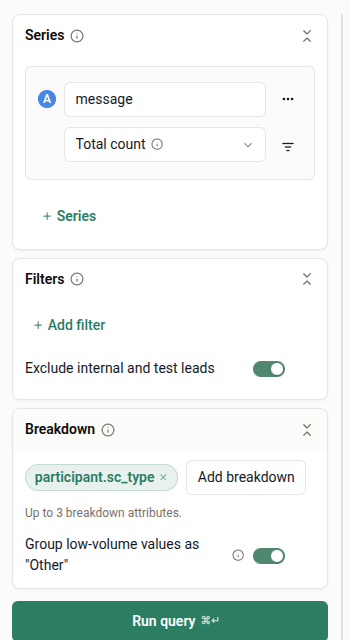
<figure><img src="https://3972437347-files.gitbook.io/~/files/v0/b/gitbook-x-prod.appspot.com/o/spaces%2FN79Qkvilzy4rLCQtSeUa%2Fuploads%2Fgit-blob-b88857c6e81aedb6b3911452ae2c2469888afe14%2Fanalytics-query-builder.png?alt=media" alt=""><figcaption><p>The query builder panel</p></figcaption></figure>

### Date range

Top right. Presets from **Today** through **Last 180 days**, plus **This week / month / year**, **All time**, or any custom range. The default is the last 30 days.

Days are counted in **your organisation's own timezone**, so "yesterday" means yesterday where your team sits.

### Filters

Narrow the whole report to a slice of your data — one campaign, one team, one channel. Filters set here apply to **every** series or step on the chart.

To narrow just one line or one step, use the small filter icon on that row instead.

### Breakdown

Split the result into one line, bar or funnel per value of an attribute you choose. Breaking `lead.created` down by campaign turns a single line into one line per campaign.

Trends lets you break down by up to **three** attributes at once (you get one line per combination). Funnels take one.

See [splitting by two things at once](/application/analytics/example-reports.md#recipe-18-split-by-two-things-at-once) for what more than one attribute does.

If a breakdown would produce hundreds of lines, Analytics keeps the 25 largest and adds the rest together into a single **Other** line. "Largest" is measured over the whole date range, not per day.

### Exclude internal and test leads

A switch at the bottom of the Filters section, **on by default**. It drops leads your team has marked as internal or test, so your own QA traffic doesn't inflate real numbers. Turn it off when you're deliberately checking a test run.

## Reading the numbers honestly

{% hint style="warning" %}
A chart is only as good as your reading of it. Four things catch people out.
{% endhint %}

**A gap is not a zero.** If nothing happened on a day, that day has no data point — the line skips it. It does not drop to zero.

**"Not set" is not "false".** If an attribute was never recorded on an event, that event is simply absent from any filter on that attribute. It does not count as a `false` or an empty value. Use the **is set** / **is not set** operators when the presence of an attribute is the thing you care about.

**Only what you've actually produced is offered.** The event and attribute pickers show your organisation's real data, not a master catalogue. An event you've never triggered won't appear — which is also the fastest way to check whether something is being recorded at all.

**Recent events take a moment to arrive.** Analytics reads a live stream, not a nightly batch, but an event that happened seconds ago may not be in the chart yet. If you're testing something end to end, give it a minute and refresh.

## Getting your own data in

Out of the box, Analytics already covers everything SalesChat does for you: leads, messages, campaigns, automations, templates, conversations. But the reports get far more useful once your own business vocabulary is in there too.

There are two ways to add it, and neither one needs a change in Analytics — anything you send simply shows up in the pickers.

### Lead and user attributes

Any attribute you store on a lead or an agent — `city`, `product_interest`, `policy_number`, `tier` — is automatically attached to every event about that lead, and becomes something you can filter and break down by. It appears in the picker under the lead's namespace, as `lead.city`, `lead.tier`, and so on.

So if your CRM already pushes `branch` onto each lead, you can chart replies per branch on day one, with no extra work.

{% hint style="info" %}
Attributes are snapshotted onto each event **as they were at that moment**. Adding a new attribute today does not retroactively appear on last month's events.
{% endhint %}

### Your own events

You can also record events of your own — `demo_booked`, `payment_received`, `policy_issued` — and they become first-class citizens in Analytics: countable in Trends, usable as a funnel step, filterable by whatever details you send with them.

They show up in the event picker grouped under **custom**, named exactly as you sent them.

This is how you connect SalesChat activity to your actual business outcome: a funnel from `lead.created` to `message` to `payment_received` tells you what a conversation is worth.

Both of these are set up by whoever handles your integration. Point them at:

* [Events & Attributes](/principles/events-and-attributes.md) — the concepts and the naming rules
* [Leads API](/api-documentation/leads.md) — the endpoint for recording an event against a lead

{% hint style="warning" %}
Two naming rules matter more for Analytics than anywhere else:

* **Don't start your attribute names with `sc_`.** That prefix is reserved for SalesChat's own fields, and attributes using it are dropped rather than stored.
* **Keep one type per attribute.** If `score` is a number for one lead and the word `"high"` for another, you won't be able to average it.
  {% endhint %}

## Where to go next

<table data-view="cards"><thead><tr><th></th><th></th><th data-hidden data-card-target data-type="content-ref"></th></tr></thead><tbody><tr><td><strong>Events Reference</strong></td><td>What every event and attribute means, in plain English</td><td><a href="/application/analytics/events-reference.md">Events Reference</a></td></tr><tr><td><strong>Example Reports</strong></td><td>Real questions, from a first chart to multi-event funnels</td><td><a href="/application/analytics/example-reports.md">Example Reports</a></td></tr><tr><td><strong>Dashboards</strong></td><td>Saving, arranging and sharing what you build</td><td><a href="/application/analytics/dashboards.md">Dashboards</a></td></tr><tr><td><strong>AI Analytics</strong></td><td>Reading your AI agent's sessions, verdicts and goals</td><td><a href="/application/ai-analytics.md">AI Analytics</a></td></tr></tbody></table>